

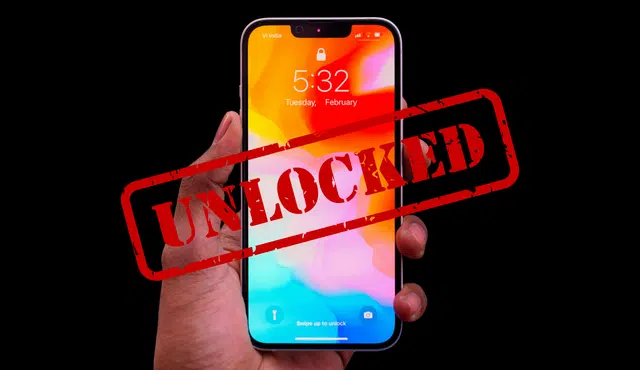
Selling your iPhone brings in more money when you remove the carrier lock. An unlocked device works with more networks, which makes it more appealing to buyers and easier to sell. You must request an unlock directly from your current carrier, since only that carrier can approve and complete the unlock.
You cannot unlock it by simply removing the SIM card or resetting the phone. Carriers review eligibility based on factors like contract status, payment history, and device balance. Once approved, the unlock process may take a few days, depending on the carrier.
After the carrier confirms the unlock, you need to erase your data, sign out of iCloud, and remove Activation Lock before listing the device. Taking these steps protects your information and ensures the next owner can activate the iPhone without issues.
Essential Steps to Unlock Your iPhone
You need to confirm your lock status, verify unlock eligibility, and submit a formal unlock request through your carrier. Then you complete the unlocking process correctly so the phone shows no carrier restrictions before you sell it.
Confirming Lock Status and Eligibility
Start by checking whether your iPhone has a carrier lock. Open Settings > General > About and look for Carrier Lock or Network Provider Lock. If it says No SIM restrictions, your device is already unlocked and ready to switch carriers.
If you see a restriction, confirm your unlock eligibility. Most carriers require that you fully pay off your payment plan, settle your account balance, and keep the line active for a minimum period. Some contracts may include an early termination fee if you cancel service before the agreement ends.
Next, locate your IMEI number. You will find it in the same About screen or by dialing #06#. Carriers use this unique identifier to process your carrier unlock request, so verify it carefully.
Also confirm the device model and whether it uses a physical SIM or eSIM, since this can affect activation after unlocking.
Starting the Carrier Unlock Request
Only your current carrier can officially unlock iPhone devices tied to its network. Apple does not perform carrier unlocks, as explained in Apple’s guide on how to unlock your iPhone for use with a different carrier.
Contact your carrier through customer support, an online account portal, or a retail store. For example, a T-Mobile unlock request typically goes through your T-Mobile account dashboard or customer service line. Be ready to provide:
- Your IMEI number
- Your account information
- The device phone number
- Confirmation that the phone meets eligibility rules
Submit the formal unlock request and ask for written confirmation. Processing times vary by carrier and may take several days.
Avoid third-party phone unlocking services. Official carrier approval ensures the device will not show SIM Not Supported errors when the buyer inserts a new SIM.
Completing the Unlocking Process
After the carrier approves your request, complete the unlocking process. Some carriers unlock the device remotely with no code required. Others may send an unlock code with specific instructions.
If prompted, back up your iPhone first. Then insert a SIM card from a different carrier or activate a different eSIM profile to test the unlock. Follow any on-screen setup steps.
Return to Settings > General > About and confirm the status now shows No SIM restrictions. If you see SIM Not Supported, contact your carrier immediately and reference your unlock confirmation.
Once the phone reflects an unlocked status, erase it through Settings > General > Transfer or Reset iPhone before selling. This ensures the device is ready for the next owner to activate on any compatible network.
Preparing Your iPhone for Resale After Unlocking
Once you unlock your iPhone from its carrier, focus on protecting your data and making the device ready for a new owner. You need to remove Activation Lock, sign out of your Apple ID, and present the phone in the best possible condition to protect your privacy and support its resale value.
Removing Activation Lock and Find My iPhone
Activation Lock ties your iPhone to your Apple ID through Find My iPhone. If you do not remove Activation Lock, the next owner cannot activate the device.
Start by opening Settings > [your name] > Find My > Find My iPhone and turn it off. Enter your Apple ID password when prompted. This step disables Activation Lock and disconnects the device from your account.
Next, sign out completely by going to Settings > [your name] and tapping Sign Out. Enter your Apple ID password again to confirm.
Apple outlines these steps in its guide on what to do before you sell, give away, or trade in your iPhone or iPad.
After signing out, erase your data by going to Settings > General > Transfer or Reset iPhone > Erase All Content and Settings. This factory reset removes personal data and confirms Activation Lock no longer applies.
Improving Your iPhone’s Resale Value
A carrier-unlocked iPhone already appeals to more buyers. You can increase resale value further by improving the device’s condition and presentation.
Focus on these areas:
- Physical condition: Clean the screen, ports, and camera lenses. Remove dust and debris.
- Battery health: Check under Settings > Battery > Battery Health & Charging.
- Unlocked status: Confirm the device shows no SIM restrictions under Settings > General > About.
If your iPhone still connects to a single network, consider completing the unlock before listing it. An unlocked phone often sells for more, as noted in advice about how to prepare an iPhone for trade in.
Include the original box, charging cable, or unused accessories if available. Accurate photos and a clear description of the device’s condition reduce disputes and support a smoother sale.
Final Ownership and Account Checks
Before you hand over the device, confirm that you removed every personal account. Check that iCloud, iMessage, FaceTime, and the App Store no longer show your Apple ID.
If you paired an Apple Watch, unpair it in the Watch app. This step automatically backs up the watch and removes Activation Lock from it.
You should also:
- Remove any physical SIM card.
- Delete eSIM profiles if used.
- Disable AppleCare billing if you pay monthly.
After the reset, power the iPhone back on. You should see the “Hello” setup screen, which indicates the device no longer links to your Apple ID.
Complete these checks before listing or shipping the phone. Once you transfer ownership, you lose control over how the next user handles the device.